

Add Sitelas to Claude in One Click — Then Say This First
Sitelas is now in Claude's connector directory, so installing it takes one click. The hard part is knowing what to say next — here is the exact first sentence, and the real site Claude built when I said it.

Usman Haider

Adding a connector is the easy part. You click a button, a permission screen appears and you click again. Then you land back in a chat box that looks exactly as it did thirty seconds ago. (If connectors are new to you, start with what Claude connectors are.)
That's where most people stop. Nothing on screen says anything changed, so the natural move is to close the tab and mean to come back to it.
This post is the other half. Everything below is a real screenshot of a real session: the listing, the permission prompt, the build and the site that came out of it.
Step 1: Add it from the directory
Open the Sitelas listing in Claude's directory and click add.
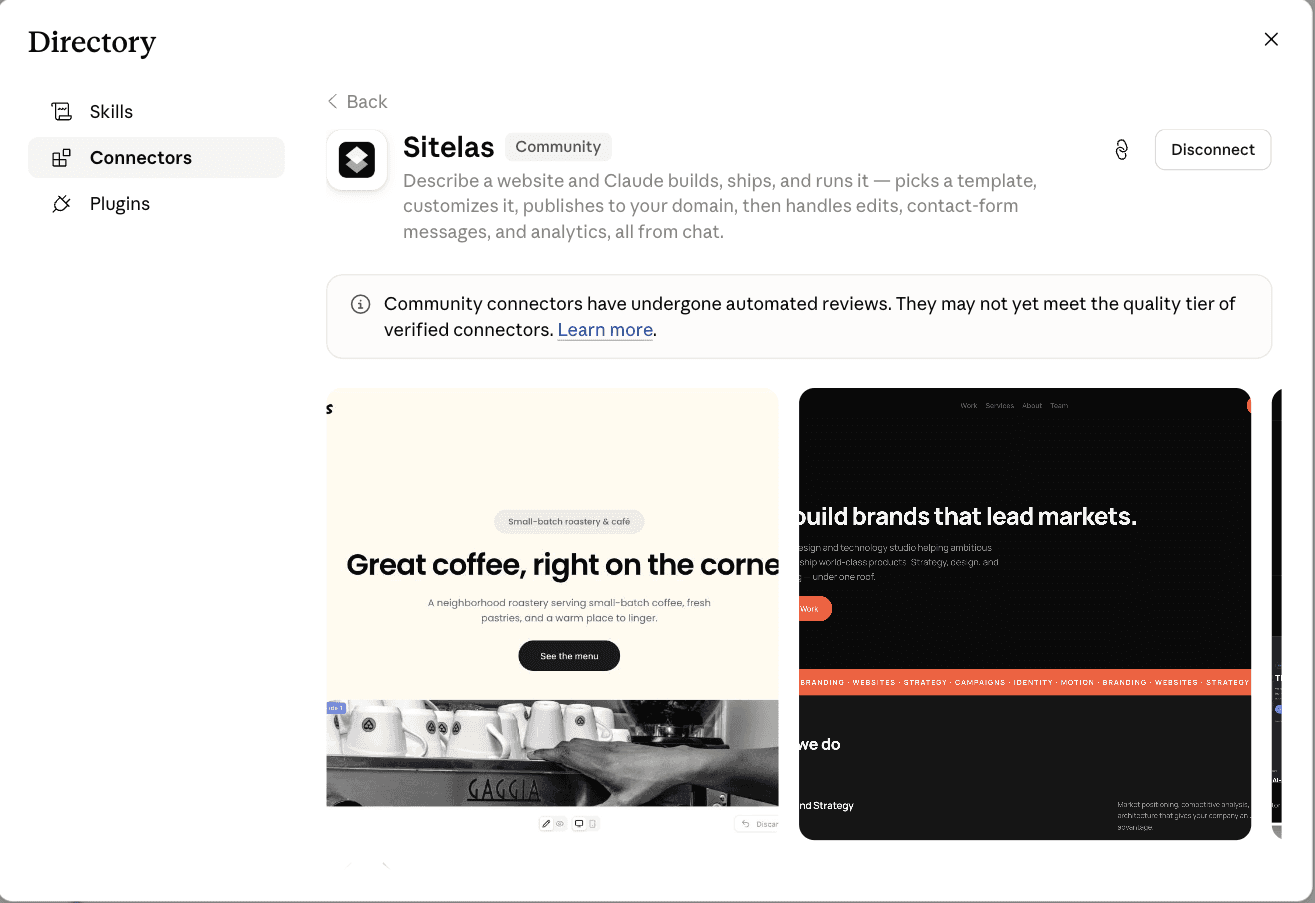
That's the whole setup. No URL to paste, no config file to edit. Claude sends you to Sitelas to sign in, or to create an account if you don't have one. You approve the connection, and it drops you back where you started.
Two things worth reading on that screen. Sitelas sits in the Community tier, and Claude says plainly what that means. Community connectors have passed automated reviews but may not yet meet the standard of verified ones. The description is an honest summary. Claude picks a template, customizes it and publishes it to your domain. Then it handles edits, contact-form messages and visitor stats, all from chat.
Using Claude Code or Claude Desktop instead? Those read connectors from a settings file and never see the directory. Add this address there instead:
https://sitelas.com/api/mcp.
Step 2: Read the screen before you click Connect
One screen stands between the click and the connection, and it's the only place that spells out what you're handing over.
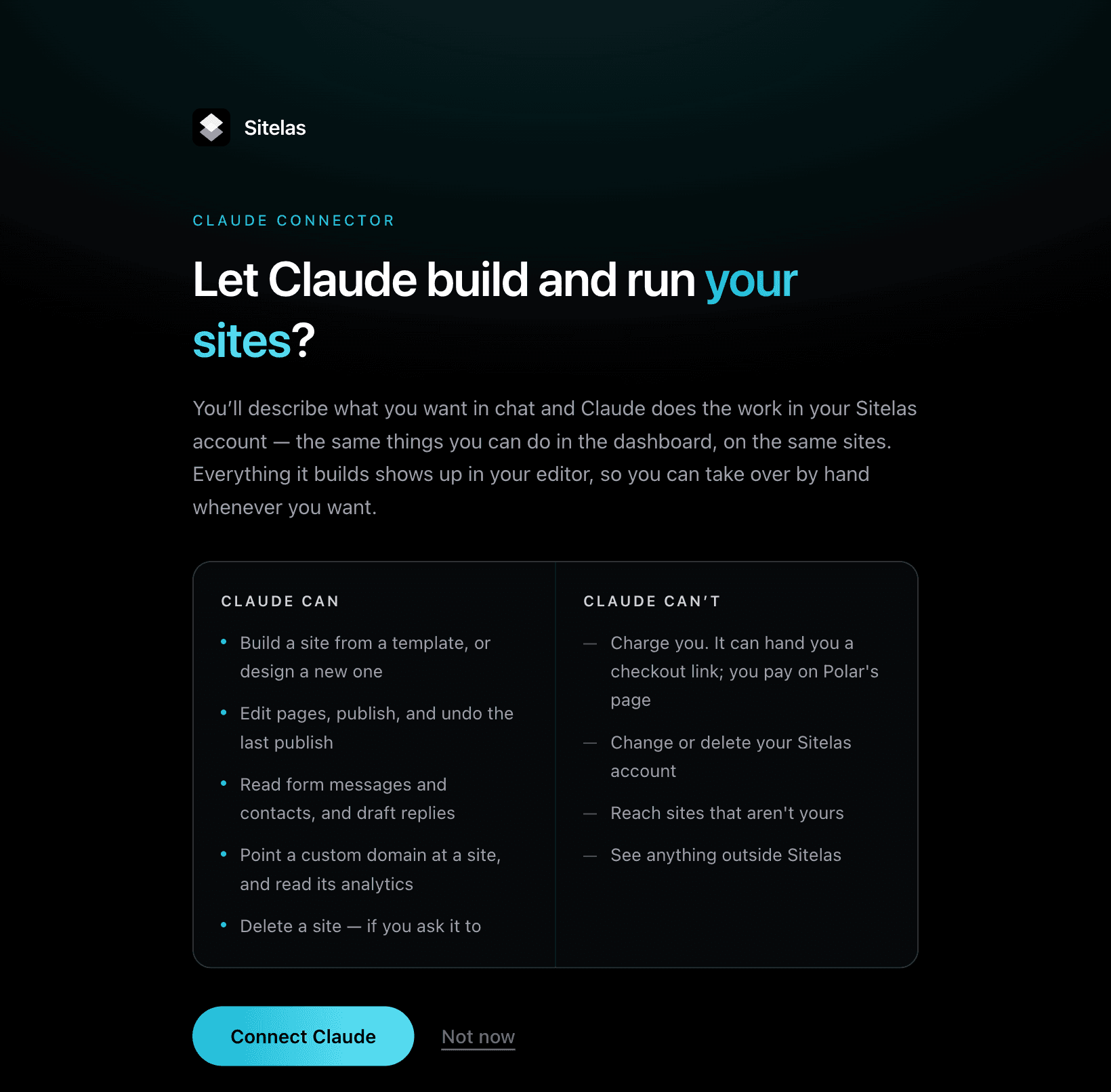
The left column is what Claude can do in your account. It can build a site from a template or design a new one, edit pages, publish and undo the last publish. It can read your form messages and contacts, draft replies, connect a custom domain and read visitor stats. It can also delete a site, if you ask it to.
That last one is in the "can" column on purpose. Naming the uncomfortable capability is what makes the right-hand column worth believing:
- It can't charge you. It can hand you a checkout link; the payment happens on Polar's page, not through Claude.
- It can't change or delete your Sitelas account. No such tool exists.
- It can't reach sites that aren't yours. Every tool is scoped to the account that approved the connection.
- It can't see anything outside Sitelas.
Everything Claude builds also shows up in your normal editor. Connecting doesn't move your sites somewhere Claude-shaped — same sites, same dashboard, second way in.
Step 3: The first thing to say
Describe what you want the way you would to a person: what it's for, roughly how it should feel and what visitors should do. Here's the exact sentence I used:
Build a one-page site for Fettle & Spoke, a neighbourhood bike workshop — repairs, servicing and wheel building. Warm and hand-made feeling, not corporate. Add a contact form so people can ask about a repair.
The first time Claude reaches for a Sitelas tool, it asks:
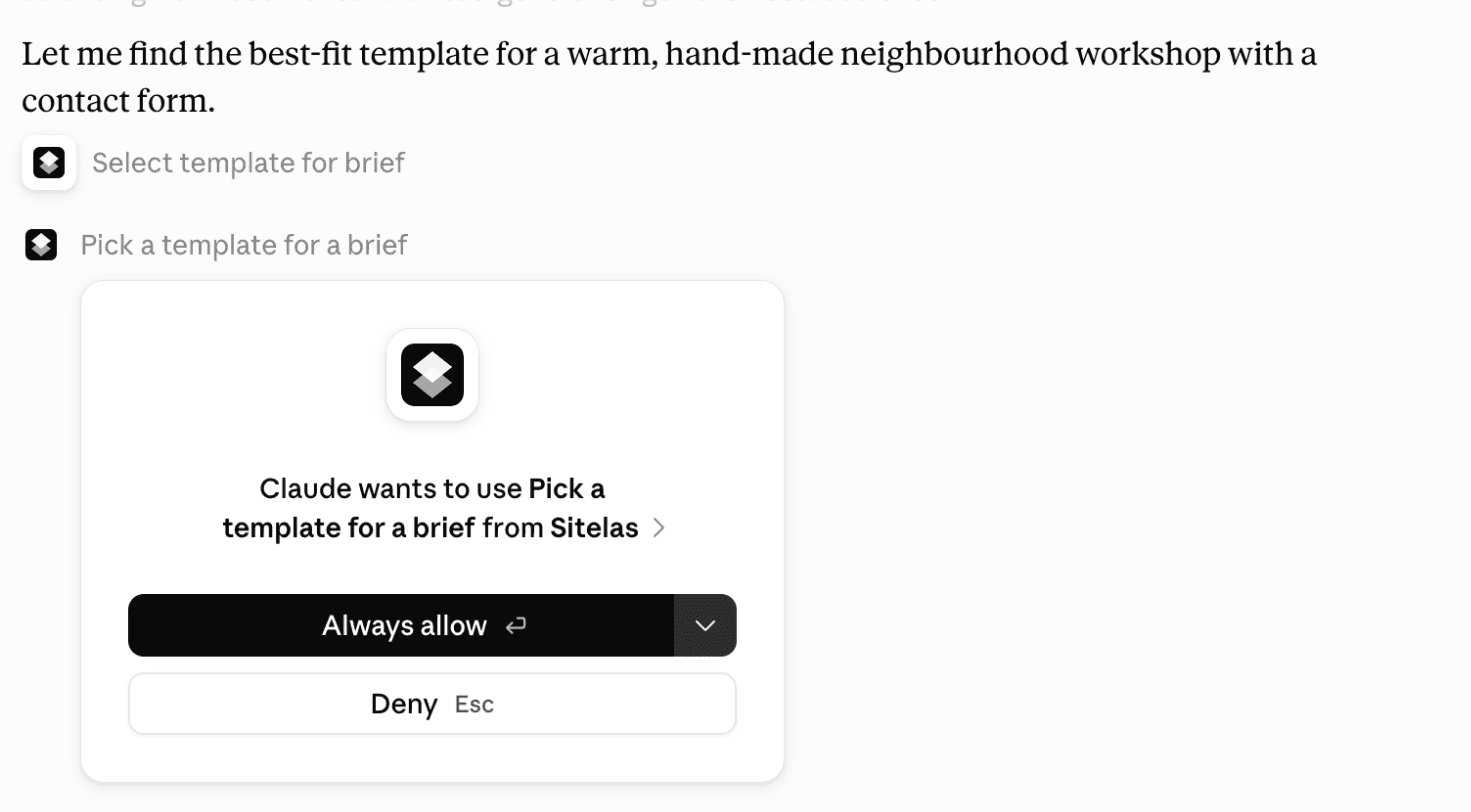
You approve per tool, or once for all of them. Either way the first move is yours.
Then it works. It didn't just fill in a template. It looked at the closest one, a renovation template, and turned it down out loud: a multi-page before-and-after portfolio was too much for a warm one-page site. So it designed the page itself, picked the fonts and went looking for workshop photographs.
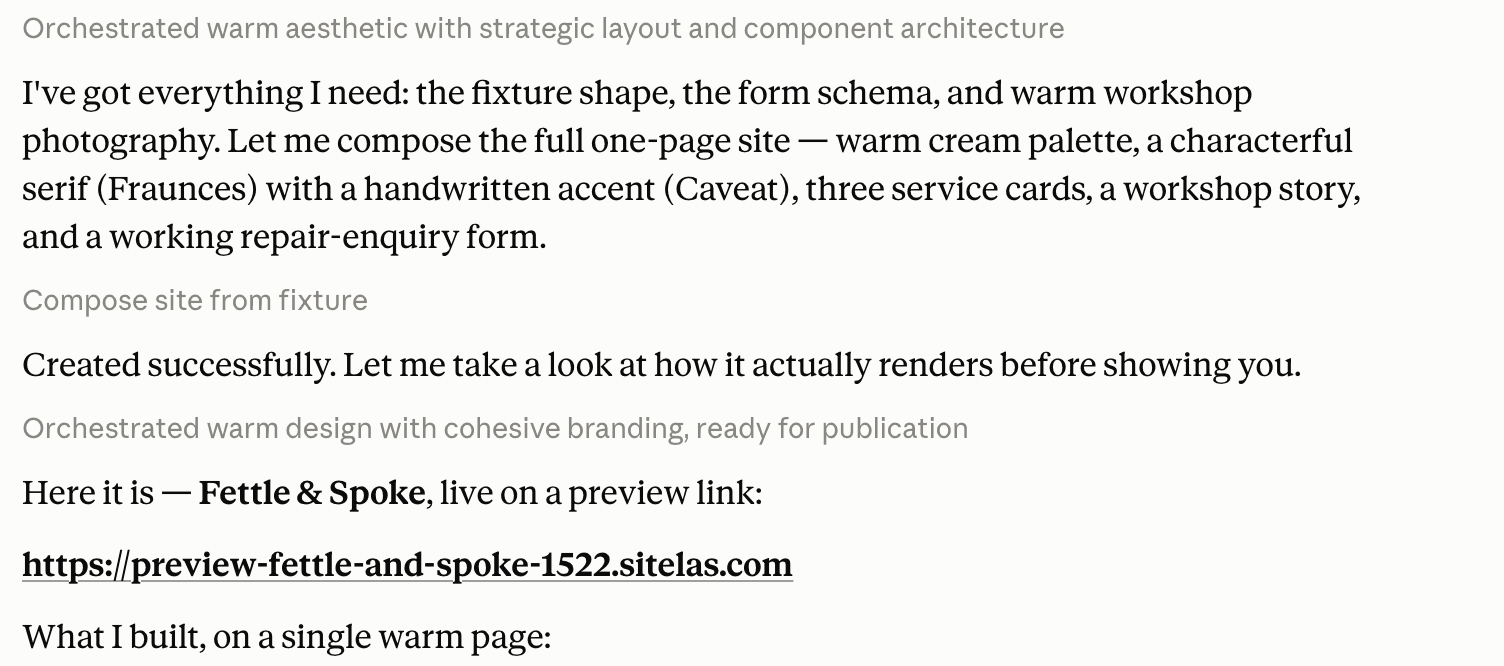
Note the step in the middle — "Created successfully. Let me take a look at how it actually renders before showing you." It screenshotted its own work before handing it over.
The bit that matters: nothing is public yet
What came back is a preview, not a live site. That isn't a figure of speech. At the moment Claude finished, here is what the two addresses actually returned:
| Address | What it showed |
|---|---|
The preview address (preview-…sitelas.com) |
The finished site |
The real address (the same, without preview-) |
Nothing yet, not public |
You can see the whole thing, click every link and change your mind. Nobody can stumble onto it while you work. Here's what was sitting at that preview address:

The second thing to say is whatever you want changed:
- "Warmer palette, and cut the hero copy to two sentences."
- "Move the enquiry form above the workshop story."
- "Swap the photo for something with more negative space."
Each one updates the draft and hands back the same preview link, refreshed. When it's right, say "publish it" — the only step that makes anything public, and it only ever happens because you asked.
Step 4: The prompt people forget — after it's live
Most website tools stop caring once the site ships. This is the half that makes the connector worth keeping.
Every form on your site sends submissions to your Sitelas inbox with no setup. The repair-enquiry form on Fettle & Spoke worked the moment it was built.
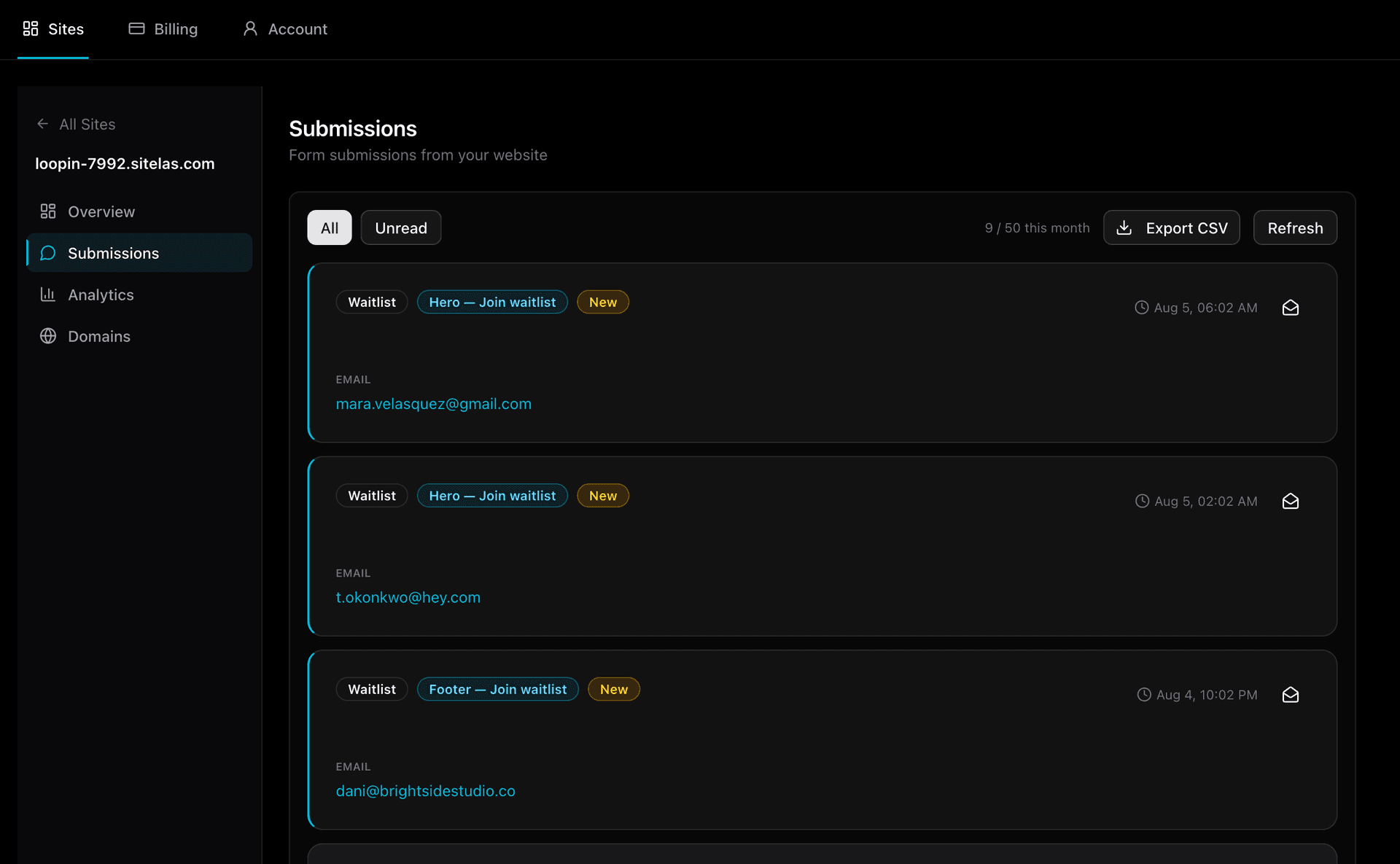
You can read that in the dashboard whenever you like. Or you can just ask, in the same chat that built the site: "Any new messages this week, and where did they come from?" Claude already has the context. It built the page, knows where each form is and reads the results without you exporting anything. If you want submissions somewhere else too, each form takes a webhook address in the editor. That covers Zapier, Make, n8n or your own system.
The three sentences, together
If you only remember one thing from this post, make it these:
- "Build me a [what it is] — [how it should feel]." → a designed draft and a private preview.
- "Change [the thing you don't like]." → same preview, updated. Repeat freely.
- "Any new messages on my site this week?" → your form submissions, read back to you.
Everything above happened in one sitting, in one chat, with no dashboard open. That's the whole loop.
Questions people ask
How do I add a connector to Claude? Open its listing in Claude's connector directory and click add. For Sitelas, you then sign in or create an account and approve. There's no address to paste.
What should I say to Claude after connecting Sitelas? Describe the site the way you would to a person: what it's for, how it should feel, what visitors should do. Or browse the local business templates and name one you like.
Is it safe to connect Sitelas to Claude? Claude can only reach your own Sitelas sites. It can't charge you or delete your Sitelas account. Nothing goes live until you say publish.
Can I use Sitelas in Claude Code? Yes. The setup for coding agents has the exact command for Claude Code, Cursor and VS Code.
Next: launching a waitlist from Claude Cowork follows the same loop on a page that's already live and collecting signups. If you'd rather hand the work to an agent that runs on its own, an AI agent can build and run a site with an API key instead. And running your website from the same chat that built it goes deeper on the operate half.
Templates to start from
Build this with a ready-made design, then change anything.

Ironclad
For civil engineering firms and heavy trades: services, a real project record and a contact form.
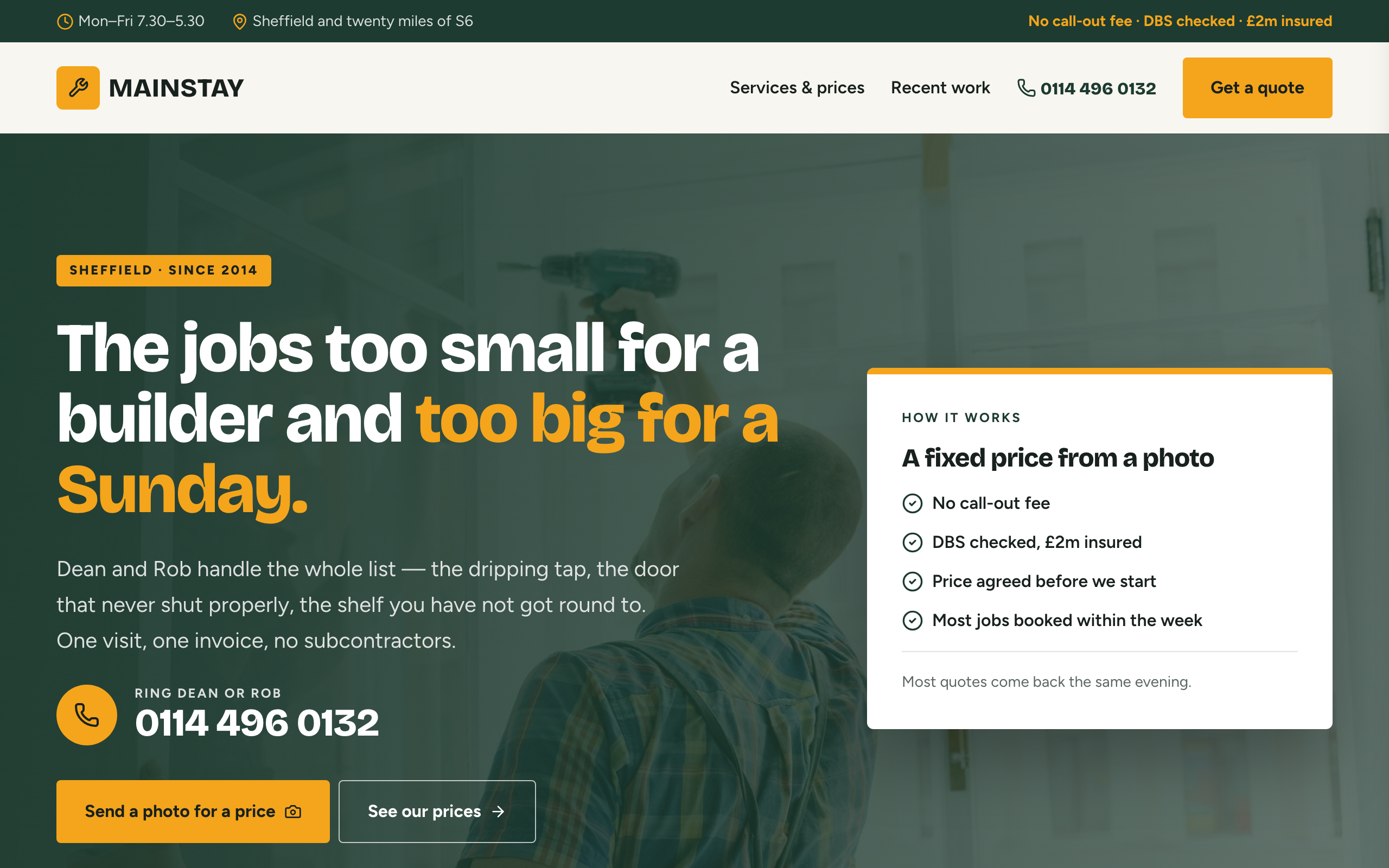
Mainstay
For handymen and local trades: tap-to-call everywhere, a service area, real job prices and a quote form.

Latte
A warm site for coffee shops and bakeries: a picture-led menu, a journal, hours and directions.

Usman Haider
Founder of Sitelas — the website builder for AI agents.