

How to Build a Form and Connect It to Google Sheets
Add a form to your site in the Sitelas editor, then forward every submission onward — to a spreadsheet, your CRM, or Slack — plus where submissions land by default and how file uploads work.

Usman Haider

A form is how your site turns visitors into leads — a contact request, a waitlist signup, a project inquiry. In Sitelas you build one in the visual editor; every submission lands in your inbox automatically, and from there you can forward it wherever you already work — a Google Sheet, Slack, your CRM — with a single webhook. Here's the whole thing, start to finish.
(New to the editor? Start with How to Use the Sitelas Editor; this guide picks up from there.)
Step 1: Add a form in the editor
Open the page where you want the form and add a Form block:
- Click the + (add block) where you want it, and choose Form from the block list. A form drops onto the canvas with starter fields.
- Click any field to edit it in the settings panel — change its label, switch its type (short text, email, phone, dropdown, long text, file upload), and toggle required.
- Use + Add field for anything extra (company, budget, "how did you hear about us"), and set the submit button label.
Keep it short — name, email, and one "what do you need" field converts better than a ten-field wall. When it looks right, Publish the site so the form is live and can start collecting.
Step 2: Every submission lands in your inbox
Before you connect anything, every form already works. Submissions are captured and show up in your site's Messages inbox — open your dashboard, pick the site, and click Messages.
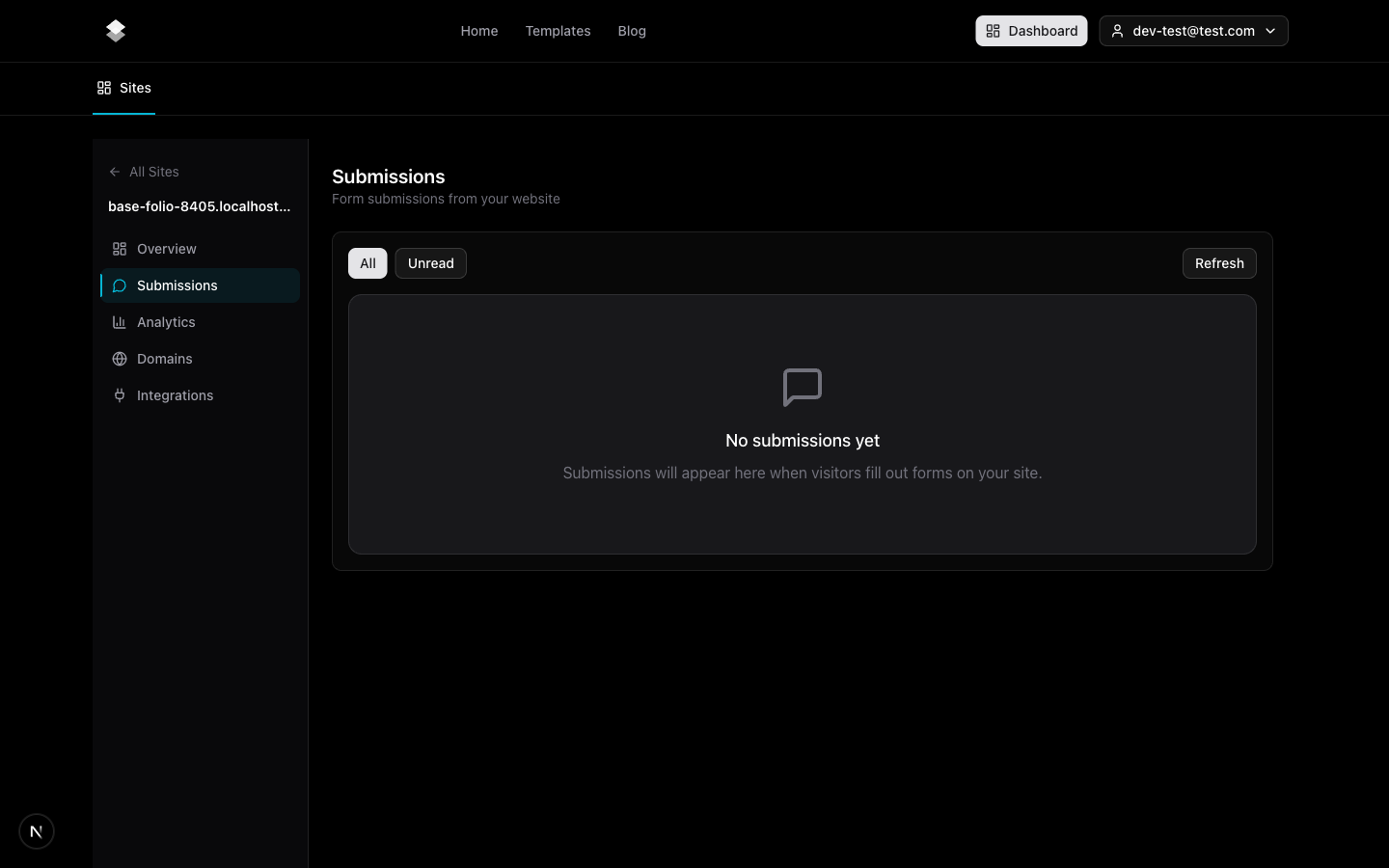
You can read entries, filter unread, reply, and export to CSV — no setup required. The inbox is always the destination; forwarding just sends a copy somewhere else.
Step 3: Forward submissions with a webhook
Want each submission to also drop into a spreadsheet, a Slack channel, or your CRM? Add a webhook — one HTTPS URL that Sitelas POSTs each submission to the moment it arrives.
In the editor, click your Form block and open its settings. In the Forward to webhook field, paste a webhook URL, then republish. That's it — every new submission is sent to that URL, with all its fields (and links to any uploaded files) as JSON.
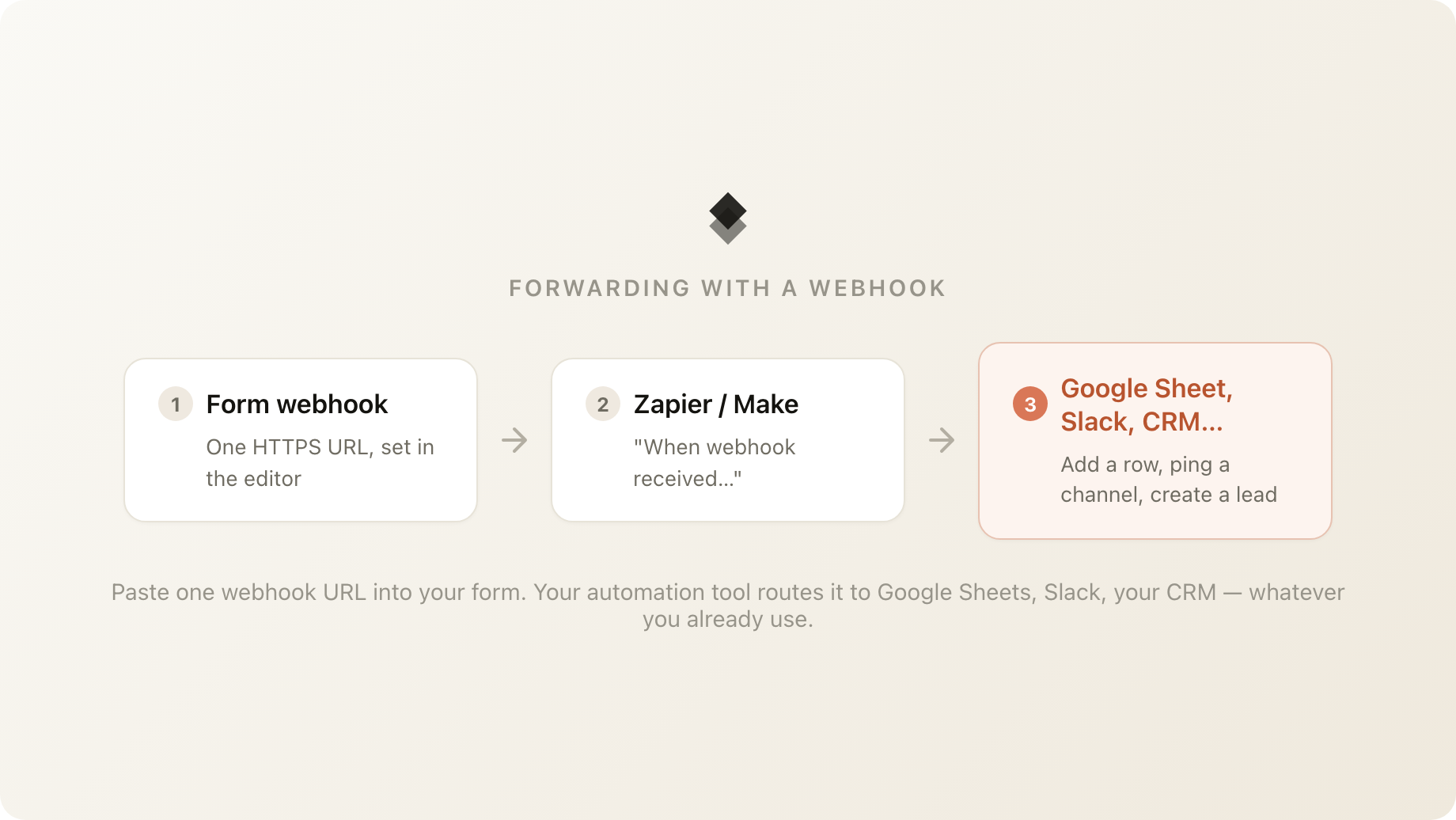
The webhook is the universal connector: point it at an automation tool and route the data anywhere you already use.
Step 4: Get submissions into Google Sheets
To land each submission as a row in a Google Sheet, put a Zapier (or Make) automation between your form and the sheet:
- In Zapier, create a Zap with Webhooks by Zapier → Catch Hook as the trigger. Copy the webhook URL it gives you.
- Paste that URL into your form's Forward to webhook field (Step 3) and republish.
- Submit your own form once so Zapier sees a sample.
- Add a Google Sheets → Create Spreadsheet Row action, map the fields, and turn the Zap on.
Now every submission appends a row to your sheet, in your own Google account — and it still lands in your Sitelas inbox as the source of truth. The same pattern works for Airtable, Notion, Slack, or an email tool: swap the second step for whatever you use.
What about file uploads?
If your form has a file upload field (a résumé, a brief, a logo), Sitelas stores the file securely for you — no Google account or setup needed. The attachment shows up in your inbox as a download link, and the webhook payload includes that same durable link, so whatever you forward to (your sheet, your CRM) gets a working file link too.
Recap
- Add a Form block in the editor and set your fields.
- Publish — the form is live and submissions land in your Messages inbox automatically.
- Forward to webhook (in the Form block's settings) → point it at Zapier/Make → Google Sheets, Slack, or your CRM.
- File uploads are stored for you and shared as secure download links.
Try it
Open your dashboard, add a form to a page, publish, and read your first submission in the inbox. When you're ready to route it onward, drop a Zapier webhook URL into the form's settings. You can also drive the whole thing from a Claude chat — building the form, publishing, and reading submissions by just asking; here's how building from a chat works, and how a waitlist runs from one chat. Start at sitelas.com.

Usman Haider
Founder of Sitelas — the website builder for AI agents.


