

How to Build a Website From a Claude Chat
Build, restyle, and publish a real website by describing it to Claude with the Sitelas connector. Claude hands you a private preview URL first — you review, refine, and only publish when it's right, and every later edit follows the same preview-then-publish loop.

Usman Haider

Most website builders make you open an app, pick a template, and start dragging things around. Sitelas has a visual editor too — but you don't have to use it. Because Sitelas plugs into Claude as a connector, you can build, restyle, and publish a real website by just describing it in a chat.
The part that makes this safe — and genuinely different — is the flow: Claude shows you a preview before anything goes public. Nothing is live until you say so. Here's the whole loop, with a freelance photographer's portfolio as the example.
First: connect Sitelas to Claude
One-time setup: Sitelas is in Claude's connector directory, so adding it takes one click — open the listing and choose Add.
Using Claude Code or Claude Desktop instead? Those read a config file rather than the directory, so point them at https://sitelas.com/api/mcp.
Sign in to Sitelas when prompted. That's it — Claude can now design sites, change themes, publish them, and read your form submissions, all from chat.
Step 1: Describe the site — Claude builds a draft and previews it
Tell Claude what you want in plain language: the kind of site, the vibe, the pages.
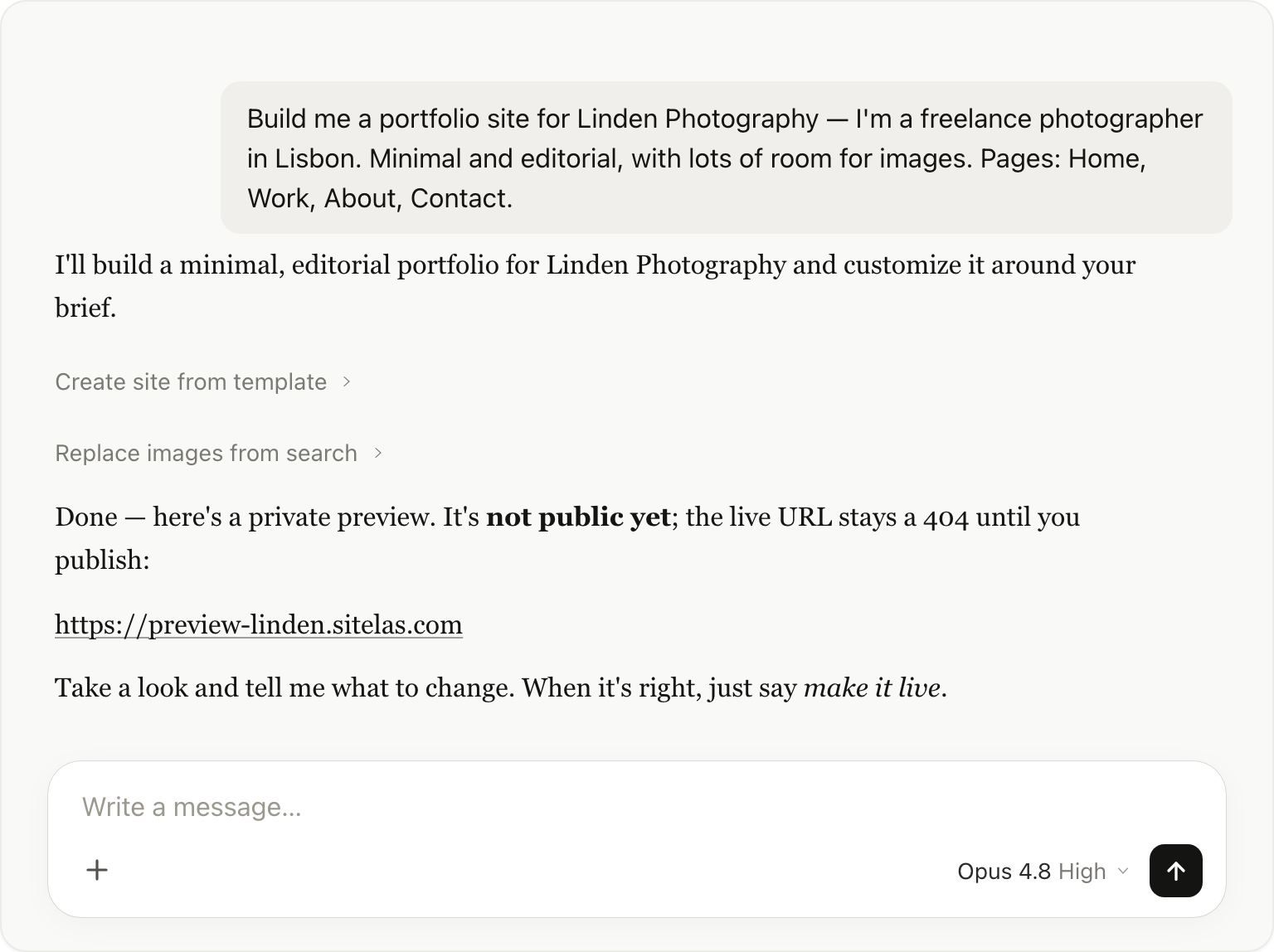
Claude picks a fitting design, writes the copy around your brief, drops in stock imagery to start, and saves it all as a draft. Then it hands you a preview URL — something like preview-linden.sitelas.com.
This is the important bit: that preview is private and the draft is not public. Your real address (linden.sitelas.com) returns a 404 until you publish. So you get to see the whole site, click through every page, and decide what to change — with zero risk of anyone stumbling onto a work-in-progress.
Step 2: Review and refine — keep prompting until it's right
Open the preview, look it over, and tell Claude what to change. Want a different look? Just describe it — Claude restyles the whole site at once.
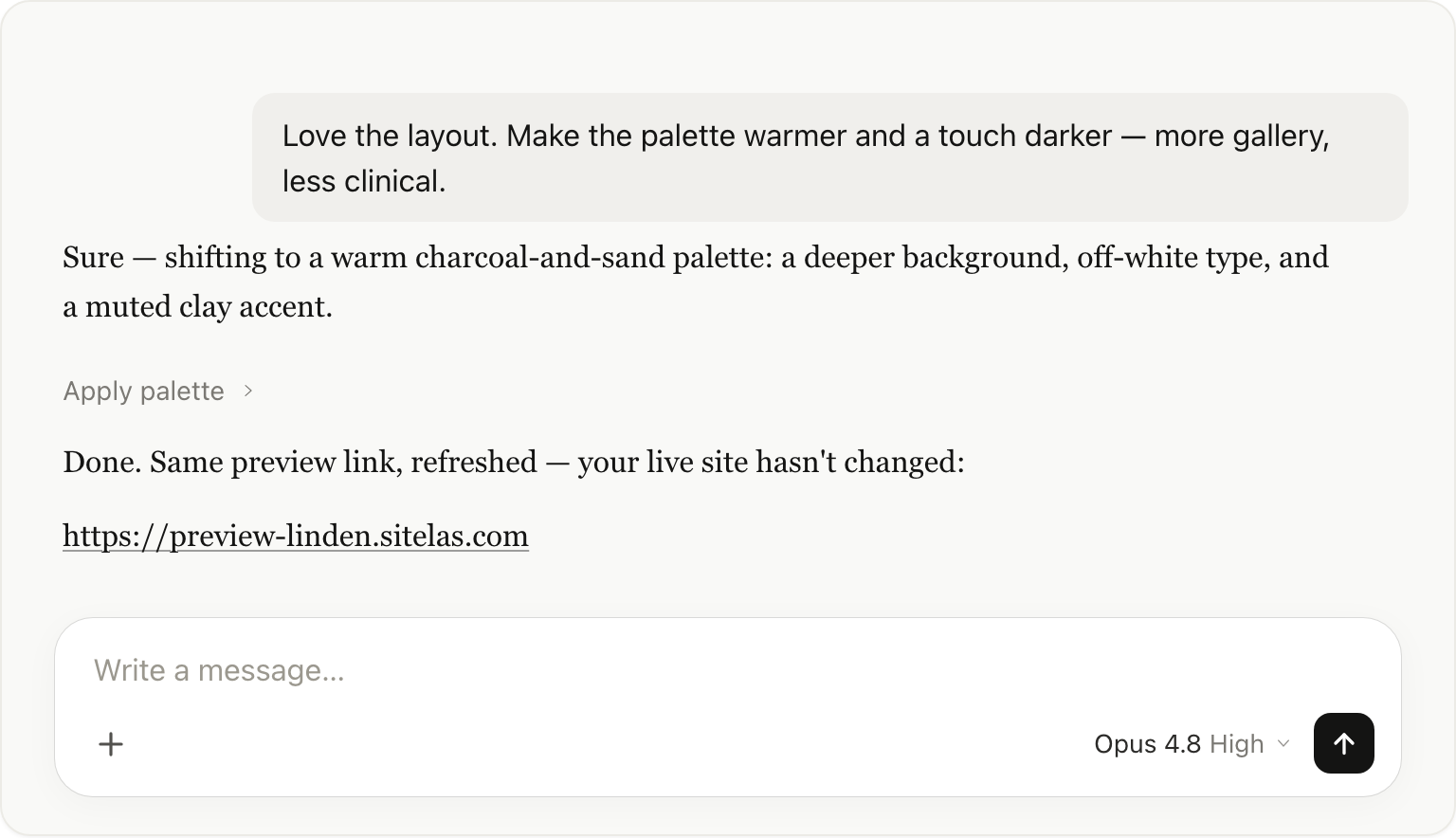
Change the palette, rewrite the hero, swap a photo, add a section — each request updates the draft, and Claude gives you back the refreshed preview. Your live site still doesn't exist yet, so iterate as much as you like:
- "Make the palette warmer and a touch darker."
- "Tighten the About copy — two sentences, not a paragraph."
- "Swap the cover image for something with more negative space."
Keep going until the preview is exactly what you want. There's no penalty for changing your mind ten times — it's all just the draft.
Step 3: Publish when it's right
When the preview looks the way you want it, tell Claude to make it live.
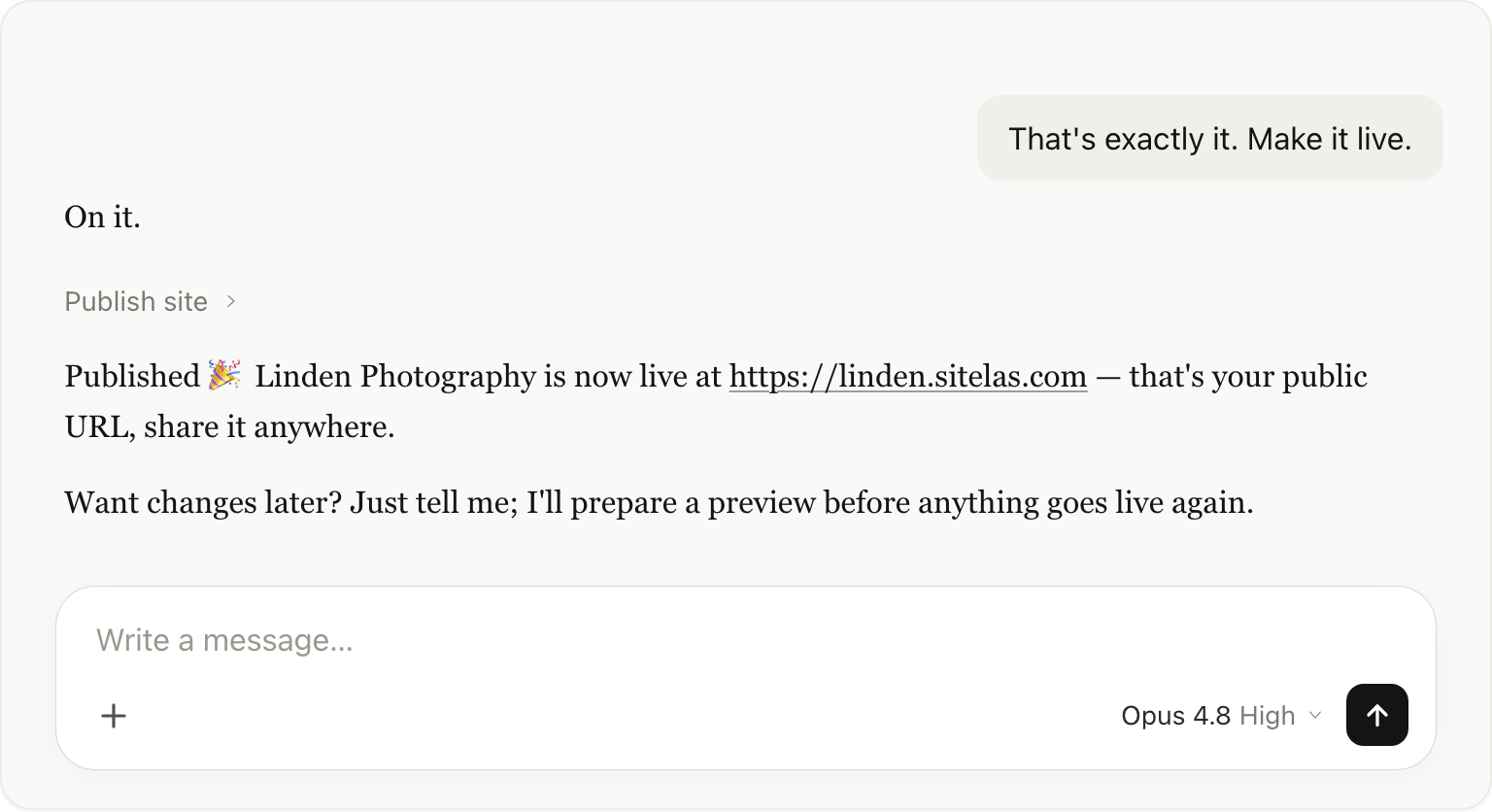
Claude promotes the draft to your public address and confirms it's live. Now linden.sitelas.com is a real website you can share anywhere — a link in your bio, a business card, an email signature.
Editing later: the same preview-then-publish loop
Here's where the flow really pays off. Once your site is live, new changes don't touch it. Ask Claude for an edit and it stages the change as a fresh preview — your live site keeps serving the last published version until you publish again.
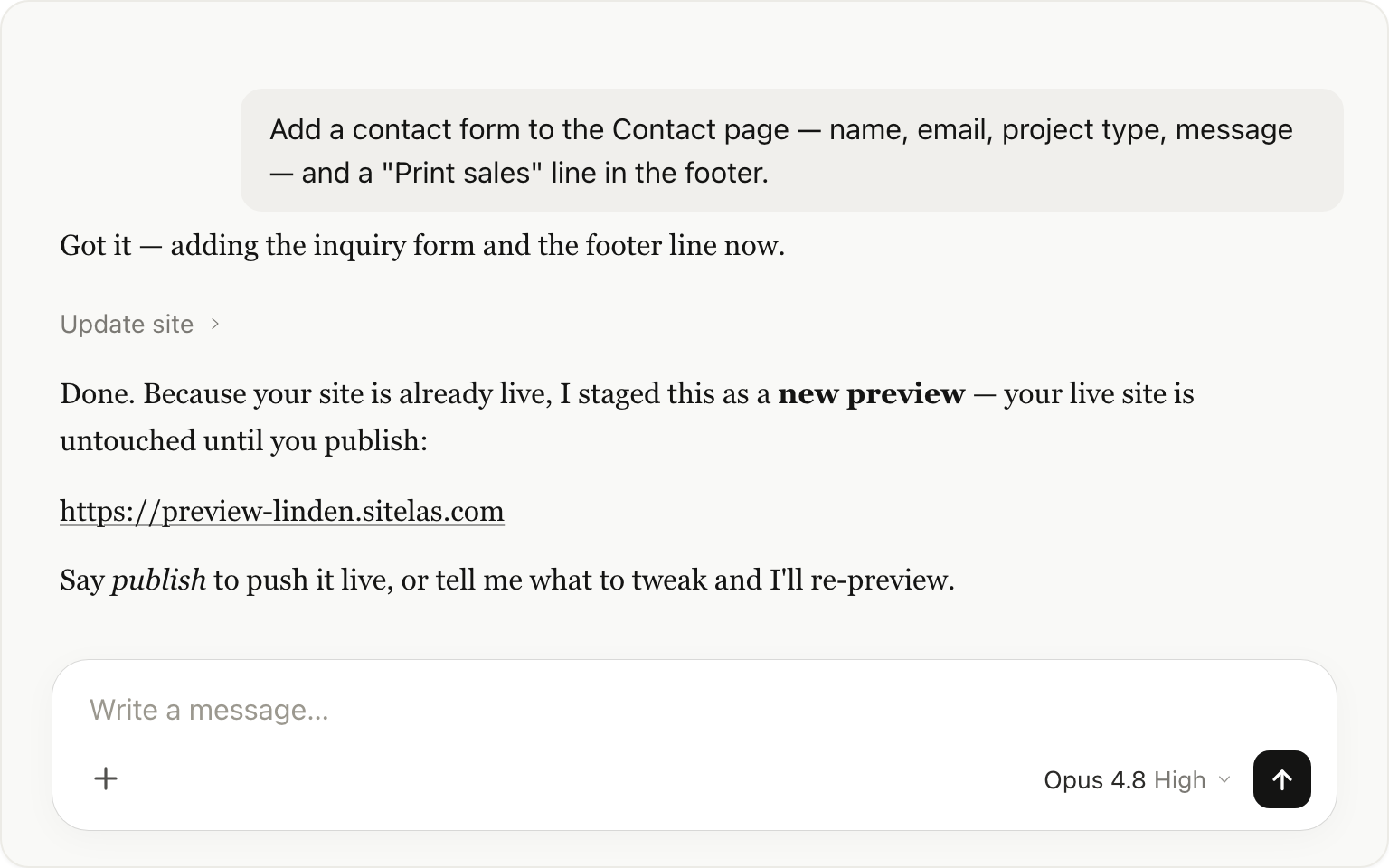
So you can add a contact form, refresh your portfolio, or change your rates without ever putting a half-done edit in front of visitors. You review the new preview, tweak it if you need to, and publish when it's ready — exactly like the first time.
The mental model
It's the same model whether you work from chat or the visual editor, and it's worth holding onto:
- The preview is always your latest draft. Every change Claude makes shows up here first.
- The live site is your last publish. It only changes when you explicitly say "publish."
That gap between draft and live is the whole point. You experiment freely in the preview; visitors only ever see the version you signed off on.
Why do this from a chat at all?
Because the context never resets. The same Claude that built your site can forward your contact form to your other tools, read the submissions that come in, and draft replies through your Gmail — all in the same conversation. Your site stops being a separate destination you log into and becomes one more thing Claude can do for you, next to your email and calendar. For a full worked example — launch page → signups → scored shortlist → drafted invites — see I Launched a Waitlist and Ran It From One Claude Chat.
And if you'd rather point and click for a particular change, every site still opens in the visual editor with the same draft → preview → publish flow. Chat and editor edit the same draft, so you can move between them freely.
Try it
Add the Sitelas connector in Claude, then ask it to build the site you've been meaning to make. Review the preview, prompt until it's right, and publish when you're happy. Start at sitelas.com.

Usman Haider
Founder of Sitelas — the website builder for AI agents.


