

What Are Claude Connectors? A Plain-English Guide
What Claude connectors are, where to find them, how to add one and how to stay in control, with real screenshots of Claude's directory and a worked example.

Usman Haider
What are Claude connectors? They are links between Claude and the apps you already use. On its own, Claude only knows what you type or upload. It can't see your inbox, your calendar or your files. With a connector, Claude can look things up in that app and do things for you.
This guide covers what connectors do, where to find them, how to add one and how to stay in control. The worked example is Sitelas, a website builder that works as a connector.
What are Claude connectors, exactly?
A connector is a link between Claude and one other service. Once it's added, Claude uses that service in a chat when it helps. You stop copying things in and out of the chat by hand.
Some examples from Claude's directory:
- Gmail: "find the invoice Sam sent last week and draft a reply".
- Google Calendar: "what's free on Thursday afternoon?".
- Google Drive: "summarize the proposal in my Drive".
- Sitelas: "build a website for my bakery", then later "change the opening hours".
Claude uses your own access in each app. If you can't see a file in Drive, Claude can't see it either.
Connectors, skills and plugins
You'll see three words in Claude's directory. They do different jobs:
- A connector gives Claude access to an app and your data in it.
- A skill teaches Claude how to do a task, such as writing in your brand's style. It doesn't connect to anything.
- A plugin is a ready-made bundle of skills and commands, and some include connectors too.
Where to find connectors
Claude has a directory at claude.ai/directory. You can also reach it from inside a chat. On October 19, 2026, it listed 6,873 connectors.
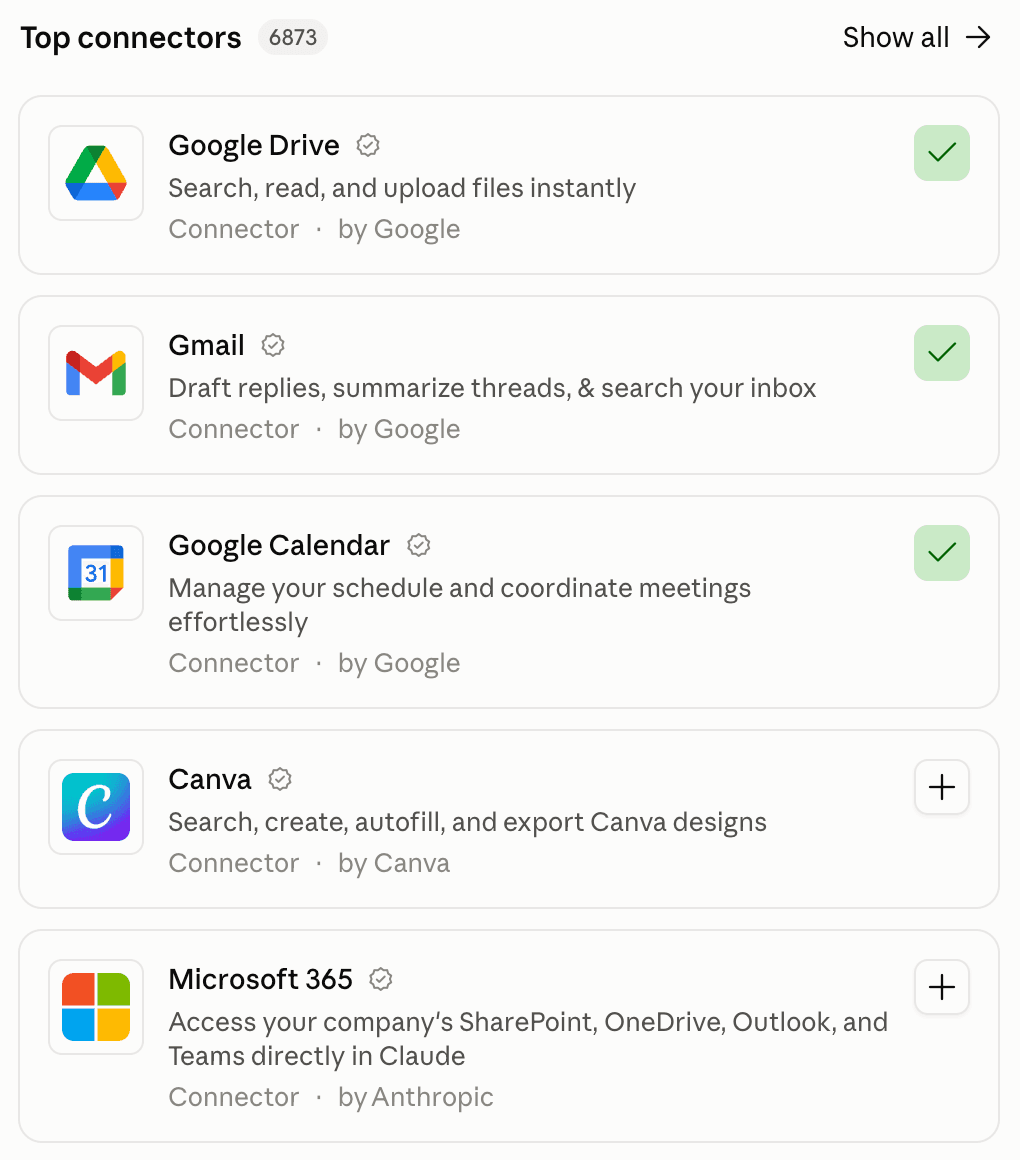
Claude's connector directory, October 2026. A green tick means the connector is added; a plus adds it.
Each connector has its own page. It says what the connector does, who made it and whether you need to sign in. Some come from the app's own company, such as Google or Notion. Others come from smaller developers.
How to add a connector
There are three ways in, and they lead to the same place:
- From the directory: open a connector's page and click Connect.
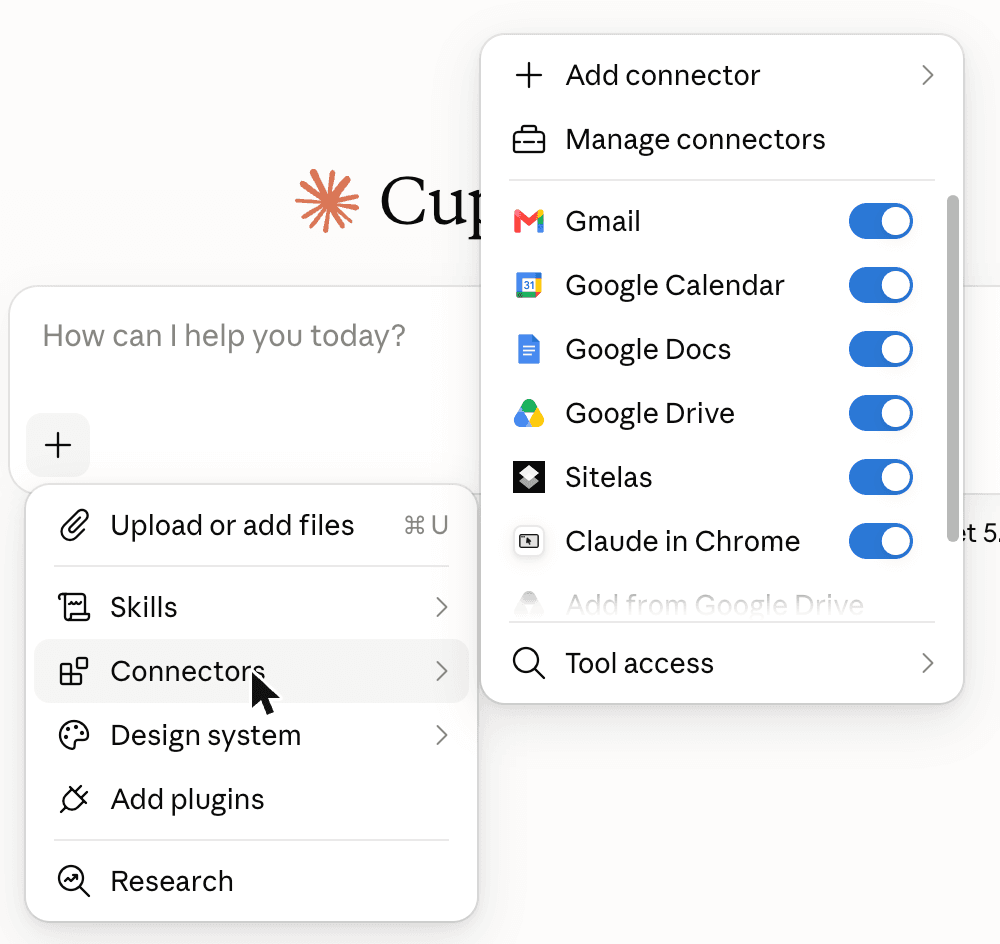
- From a chat: click + in the message box and hover over Connectors. Then choose Add connector or Manage connectors.
- From settings: go to Customize, then Connectors, and click +.
Most connectors then ask you to sign in to the other app. That screen lists what Claude will be allowed to do there. Read it before you approve.
On Team and Enterprise plans, an account owner switches a connector on for everyone first. Then each person signs in on their own.
Worked example: adding Sitelas
Sitelas builds and runs websites from a chat. It's in Claude's connector directory, under Websites.
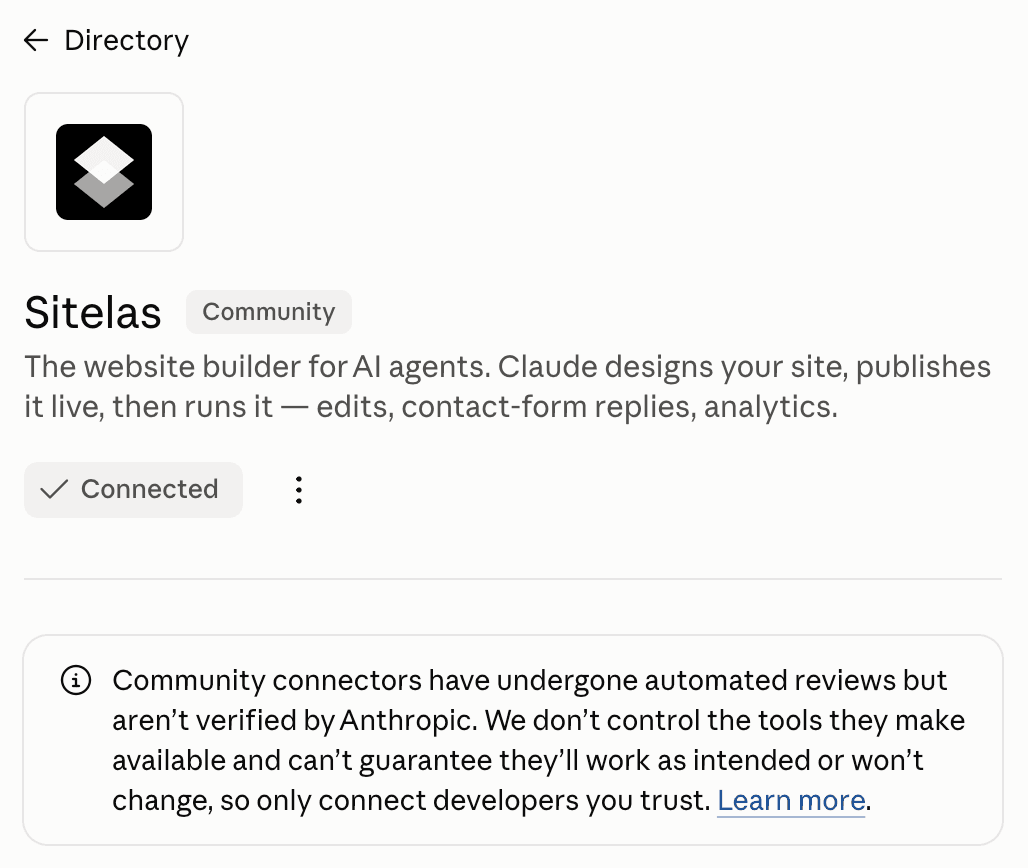
Note the grey box. Sitelas is a Community connector. Claude says these have had automated reviews but aren't verified by Anthropic. Many connectors in the directory are community ones. So check who made a connector before you add it.
Adding Sitelas is one click on that page. The sign-in that follows also creates your Sitelas account. Add Sitelas to Claude in one click walks through each screen.
Then you just ask. No special commands are needed, but naming the app helps Claude pick the right one:
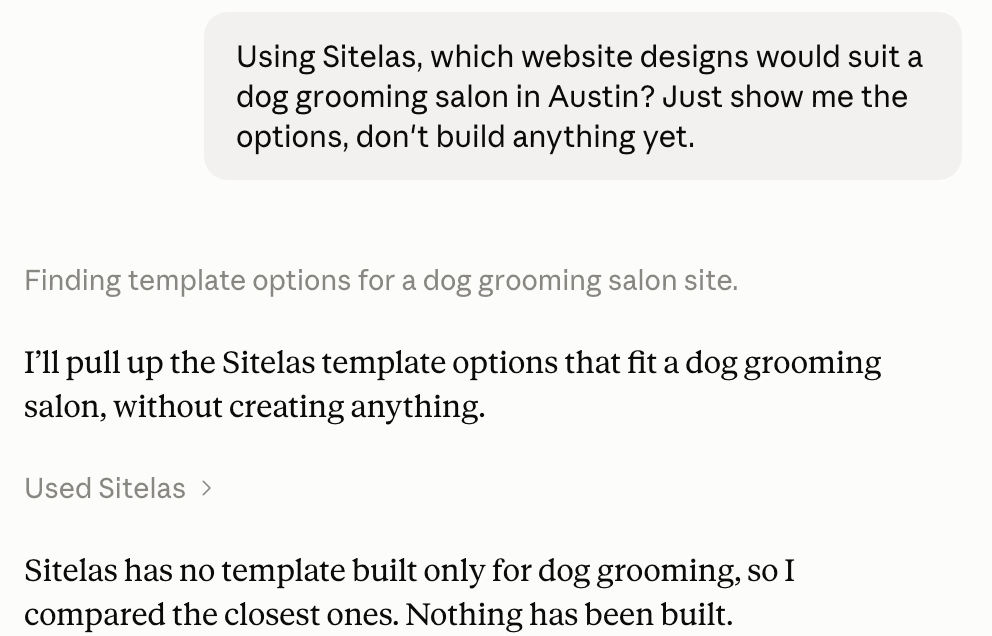
The grey "Used Sitelas" line shows Claude used the connector. Click it to see what Claude asked Sitelas and what came back.
Interactive connectors
Most connectors answer in text. Some can also show a small working app inside the chat. Claude calls these interactive connectors. Asana, for example, can open a task board where you tick off tasks without leaving the chat. Figma, Canva, Slack and Box have them too.
Look for the Interactive badge in the directory. They switch on with the connector, and work on every plan.
How to stay in control
Connectors can do real things, such as send an email or publish a website. Four habits keep that in check.
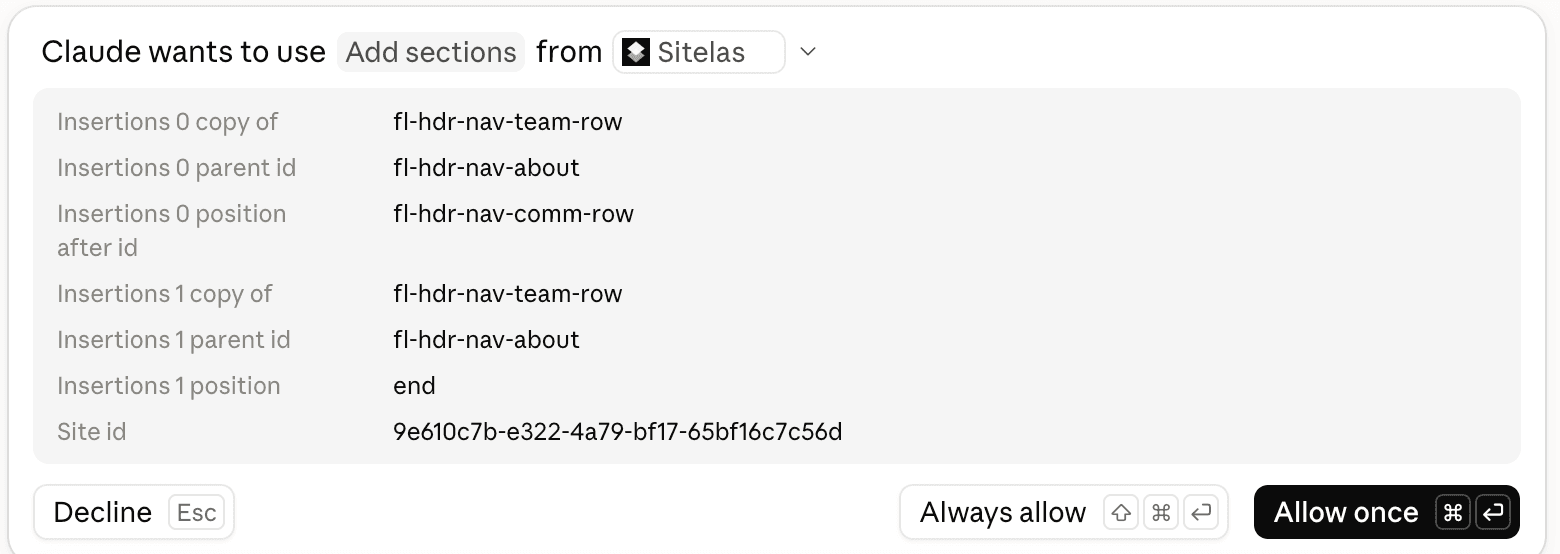
Approve actions. Claude can ask before it uses a connector's tool. You choose Allow once or Always allow. Keep "Always allow" for tools you trust to run unwatched.
Turn connectors on or off per chat. In the + menu, under Connectors, each one has a switch. Turn off the ones a chat doesn't need.
Add only what you need. Read the directory page and the sign-in screen first.
Disconnect what you don't use. Go to Customize, then Connectors, pick the connector and disconnect it.
Good connectors also ask before doing anything public. Sitelas builds every site as a private preview first. Nothing goes live until you say "publish".
Desktop extensions: connectors for your own computer
Connectors reach apps on the internet. They work on claude.ai, the desktop and phone apps, Cowork and Claude Code. Connectors you add show up on your phone after you next sign in there. Adding new ones from the phone app is still in beta.
Desktop extensions are different. They reach things on your own computer: folders, files or an app installed there. They only work in the Claude desktop app and Claude Code, not on the web or phone. You install them in the desktop app under Settings, then Extensions.
Use a connector for an online service. Use a desktop extension when the thing you need is on your machine.
Custom connectors
If an app isn't in the directory, you can sometimes add it yourself as a custom connector. Go to Customize, then Connectors, click + Add and pick the custom option. Then enter a name and the web address the app's developer gives you.
A few things to know:
- Free accounts can add one custom connector. Paid plans can add more.
- On Team and Enterprise plans, only owners (or a role allowed to) can add them.
- Anthropic hasn't checked custom connectors. Only add ones from developers you trust.
Questions people ask
Are Claude connectors free? Connectors work on every Claude plan, including the free one. The other app may charge for itself. Sitelas, for example, lets you publish one site free, and Pro is $9 a month per site.
What is the difference between a connector and a plugin in Claude? A connector links Claude to one app. A plugin is a ready-made bundle of skills and commands, and some include connectors. Both live in the same directory.
Is it safe to use Claude connectors? Connectors use your own access in each app, and you can approve each action. Read the directory page and the sign-in screen first. Many are community connectors that Anthropic hasn't verified, so add only what you need.
Can I use Claude connectors on my phone? Yes. Connectors you've added show up in the Claude phone apps. Adding new ones from the phone is in beta, so add them on the website or desktop app.
Does ChatGPT have connectors too? ChatGPT has its own version, which its directory calls plugins. Sitelas works in both. How to build a website with ChatGPT shows the ChatGPT side.
To see a connector at work over weeks, read run your website from a Claude chat. To watch several connectors in one conversation, see how I hired an engineer without leaving a Claude chat. It used Sitelas, Gmail and Google Calendar together. Using Claude Code? Set up Sitelas there with one command.
Try one
The quickest way to understand connectors is to add one and ask it something. If you have a business or project without a website, Sitelas is a good first one. Paste this into a new chat after adding it:
Use Sitelas to build a one-page website for [your business] in [town].
We [what you do]. Show me a private preview before anything goes live.
- Add to Claude: Sitelas in Claude's connector directory
- Add to ChatGPT: Sitelas in ChatGPT
- See the designs first: Sitelas templates

Usman Haider
Founder of Sitelas — the website builder for AI agents.